Budget Template
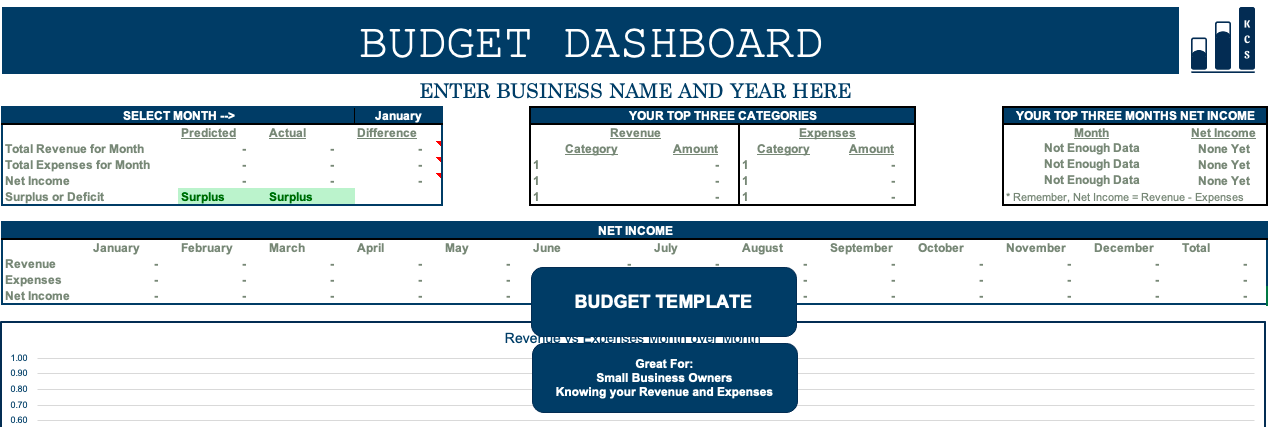
KCS’s budget template
Effective, straightforward, empowering.
Instructions can be found below and in the template’s “Instructions” tab.
Instructions for Completing the Budget Template
Step 1: Complete Setup Tab
Enter all CATEGORIES of expected revenue and expenses for the year for which the budget is being made.
Categories can be added throughout the year, but we recommend putting a miscellaneous one for one-off expenses at the start of the year.
Step 2: Enter your Budget Predictions for the entire year on the Budget_Predictions tab
Enter your Budget Predictions for the entire year on the Budget_Predictions tab
Enter your predictions for both revenue and expenses for the entire year on the budget predictions tab.
If you do not want to do for the entire year, you can do this exercise monthly (personally that is what I do to have a better idea of what I earn and what I spend).
The month column is a drop down menu, so just pick whichever month you are wanting to do your budget prediction for.
The category column is a drop down menu based on the categories you set up in the setup tab.
Enter the dollar amount for each category you expect to earn/spend for the month.
A positive amount for revenue means you expect to earn this amount. A positive amount for expenses means you expect to spend this amount.
Be careful to enter only revenue under the left side (revenue) and expenses under the right side (expenses).
Step 3: Enter your Actuals on the Actuals tab
Enter your Actuals on the Actuals tab
My recommendation is to set up one day each month (I usually do it on the 2nd day of the following month) to review all the actuals for your business and enter them in the actuals tab.
As with the Budget_Predictions tab, the month column is a drop down menu, so just pick whichever month you are wanting to enter your actual for.
As with the Budget_Predictions tab, the category column is a drop down menu based on the categories you set up in the setup tab.
Enter the dollar amount for each category you earnt/spent for the month.
Be careful to enter only revenue under the left side (revenue) and expenses under the right side (expenses).
Step 4: The Budget Dashboard
This tab provides you with an overview of your business.
Enter your business name and the year for which you are budgeting in cell B6.
The below chart shows you a monthly overview of both your predicted and actual revenue, expenses, net income, and if your company is operating in a surplus or a deficit for the month.
You can select the month you wish to view from the drop down menu available.

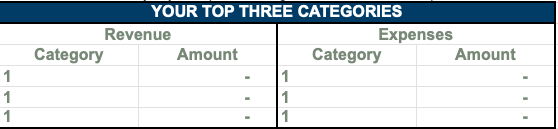
The below chart shows you your top three categories for revenue and expenses, based on ACTUALS.
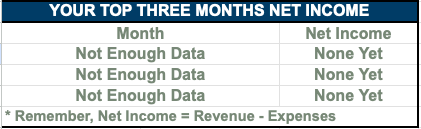
The below chart shows you your top three net income months, based on ACTUALS.
The below chart shows your monthly and yearly revenue, expenses, and net income, based on ACTUALS.

Finally, the graph shows your revenue and expenses month over month, based on ACTUALS.
Step 5: We’re here to help!
If any of this does not make sense to you, please contact us and we will be happy to assist.